


A good AI video prompt does more than describe a beautiful frame. It tells the model what must stay consistent, what should happen over time, how the camera should move, what the scene should sound like, and how the video should end.
That production-minded approach is especially useful with Seedance 2.5. The model can create connected audiovisual sequences from text and supported reference assets, follow time-based instructions, and handle more involved scene progression than a simple one-shot prompt.
This Seedance 2.5 prompt guide explains how to turn those capabilities into clearer, more controllable results on Seedance video generator.
What is Seedance 2.5?
Seedance 2.5 is an AI video generation model designed for connected storytelling, multimodal direction, synchronized sound, and finer control over important moments.
Its prominent capabilities include:
Generating video sequences of up to 30 seconds in one generation on SeeAPI
Following timestamped instructions for actions, dialogue, sounds, and shot changes
Using image, video, and audio references to guide identity, composition, motion, rhythm, or sound
Producing more natural physical texture and smoother complex actions
Improving consistency across changing shots and multi-character scenes
Responding more reliably to instructions such as “no subtitles” or “no background music”
These capabilities make Seedance 2.5 video generator suitable for people's personalized needs.
Seedance 2.5 vs 2.0: What Has Improved?
Seedance 2.0 remains a capable multimodal model and a useful option for excellent video generation.
Seedance 2.5 builds on that foundation with improvements aimed at longer, more directed, and more reference-heavy workflows.
Area | Seedance 2.0 | Seedance 2.5 |
|---|---|---|
Video Length | Up to 15s | Up to 30s |
Reference Materials | Up to 15 | Up to 50 |
Reference Images | Up to 9 | Up to 30 |
Reference Videos | Up to 3 | Up to 10 |
Reference Audios | Up to 3 | Up to 10 |
Input Modalities | 4 | 4 |
Video Extension | Supported | Multi-round |
Editing Precision | Clip-level | Timestamp-level |
Long-form Creation | 15s multi-shot | 30s + multi-minute extension |
This is an evolution rather than a replacement for every workflow. Head over to Seedance video generator to try these 2 different models.
Choose the Right Seedance 2.5 Generation Mode
The best video output depends on what you are giving the model. A text-only prompt must establish the entire visual world. An image-to-video prompt should focus on motion and continuity. A reference-to-video prompt must explain the job of each uploaded asset.
1 Text to Video
Seedance 2.5 Text to Video creates a scene from a written description without requiring a source image. Use it when you want the model to invent the characters, environment, composition, lighting, action, and camera language from scratch.
It works well for:
Original cinematic scenes and short stories
Product concepts before photography or design assets exist
Stylized animation, fantasy, or surreal ideas
Rapid exploration of different visual directions
Scenes where exact character or product identity is not essential
On free Seedance video generator, select Seedance 2.5 model, choose Text, enter the Prompt below, select the Aspect Ratio, set the Duration and Resolution, decide whether to enable Generate Audio, review the required credits, and click Generate Video.
Text-to-video prompt example
A cinematic night scene in a quiet coastal town. A tired bicycle courier in a yellow raincoat stops beneath a flickering streetlamp and opens a small package that glows with warm amber light. Start with a wide tracking shot through heavy rain, then slowly push toward the courier as the package opens. Wet pavement reflects blue storefront lights; wind moves the raincoat and nearby signs. Natural rain ambience, distant waves, a soft electrical hum from the package, no dialogue, no subtitles, no logo. End on a close-up of the courier’s surprised expression reflected in the package lid.
The video created by Seedance 2.0. Copy the prompt and try Seedance 2.5.
2 Image to Video
Seedance 2.5 Image to Video animates a supplied first frame while preserving its subject, composition, or visual identity. It is the better choice when you already have a character design, product shot, key visual, illustration, or carefully composed scene.
It works well for:
Bringing portraits and character art to life
Animating product photography or campaign key visuals
Adding camera motion to a still composition
Preserving an established color palette or art direction
Guiding both the opening and ending composition with start and end frames
On free Seedance video generator, elect Seedance 2.5 model, choose Image, which opens the Start / End Frame workflow. Upload the First Frame Image and turn on Add End Frame when you want to guide the final composition as well. Then enter the below Prompt, set the Duration and Resolution, choose the Generate Audio settings, and click Generate Video.
An image already tells the model what the scene looks like, so the prompt should spend more space on what changes: subject motion, camera path, environmental response, timing, sound, and the details that must remain unchanged.
Image-to-video prompt example
Use the uploaded image as the exact opening frame. Preserve the woman’s face, silver earrings, red coat, and the neon-lit alley. She looks over her shoulder as a train passes behind the frosted windows. Her hair and coat move naturally in the wind. The camera performs one slow push-in from medium shot to close-up; reflections slide across the wet pavement without changing the location. Add low city ambience, the muffled sound of the train, and soft fabric movement. Keep facial proportions, wardrobe, and lighting consistent. No extra people, no text, no logo, no sudden camera shake.
The video created by Seedance 2.0. Copy the prompt and try Seedance 2.5.
3 Reference to Video
Seedance 2.5 Reference to Video is designed for ideas that need more guidance than one opening frame can provide. Different assets can define different parts of the result: one image for a character, another for a location, a video for movement or camera behavior, and an audio file for voice, rhythm, or atmosphere.
It works well for:
Maintaining a recurring character or product across multiple shots
Recreating motion, pacing, or camera language from a video reference
Combining a character, wardrobe, prop, and location from separate assets
Guiding dialogue delivery, sound design, ambience, or musical rhythm
Directing multi-character scenes with clearer identity separation
On free Seedance video generator, elect Seedance 2.5 model, choose Reference. Use Upload Reference or select files from the Assets Library. The current form displays a 50-reference capacity and accepts image, video, and audio file types.
Do not simply upload many files and expect the model to infer their roles. Name the purpose of every important reference in the prompt.
Reference-to-video prompt example
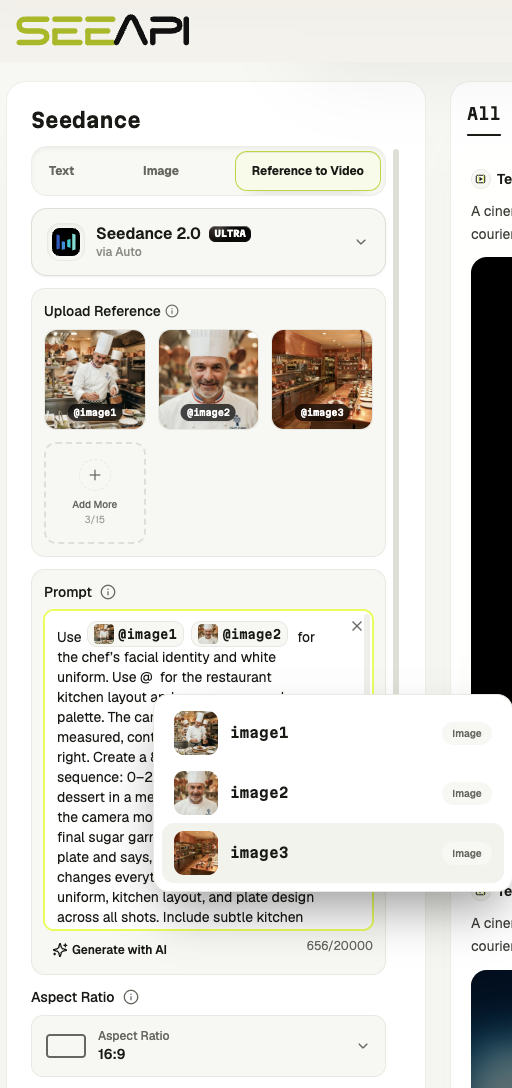
Use @image1 @image2 for the chef’s facial identity and white uniform. Use @image3 for the restaurant kitchen layout and warm copper color palette. The camera movement should in measured, controlled lateral move to the right. Create a 8-second cinematic sequence: 0–2s, the chef plates a dessert in a medium tracking shot; 2-4s, the camera moves closer as he adds a final sugar garnish; 4-8s, he presents the plate and says, “The smallest detail changes everything.” Preserve her face, uniform, kitchen layout, and plate design across all shots. Include subtle kitchen ambience and precise utensil sounds. No subtitles, no background music, no additional staff.
The video created by Seedance 2.0. Copy the prompt and try Seedance 2.5.
How to Write Perfect Seedance 2.5 Prompt
A reliable Seedance 2.5 prompt can be organized as:
Reference roles + one-sentence concept + timed action + camera direction + visual treatment + audio + continuity rules + exclusions + ending
Not every prompt needs every block. Short scenes can be written in one compact paragraph. Longer videos benefit from clear sections and timestamps.
1. Assign Every Reference a Specific Role
If you upload references to Seedance 2.5 video generator, state exactly what should be taken from each one.
Use instructions such as “Use @Image 1 only for character identity” or “Follow the camera rhythm of @ Video 3 without copying its subject.” This reduces conflicts between assets.
2. Summarize the Whole Video in One Sentence
Start your Seedance 2.5 prompt with the subject, place, event, style, and primary camera intention.
A cinematic product film in a dark studio where a mechanical watch assembles itself as the camera performs a slow circular move.
This sentence gives Seedance 2.5 a stable creative direction before the detailed timeline begins.
3. Describe Visible Actions in Chronological Order
Use concrete verbs: walks, turns, reaches, opens, looks, lifts, pours, pauses, or runs. Explain what the viewer can actually see.
For short clips, write the action in sequence. For longer clips, divide the video into time ranges:
0–4s: Establish the empty workshop and the watch components arranged on a black table.
4–9s: Gears rise and connect while the camera tracks clockwise.
9–13s: The assembled watch face begins ticking; warm light travels across the glass.
13–15s: End on a centered hero close-up with the second hand reaching twelve.
Give each time block one main purpose. Too many simultaneous actions can make motion feel rushed or incomplete.
4. Connect Camera Movement to the Story
Describe shot angle, framing, and one primary camera move. Use a push-in to increase intimacy, tracking to follow movement, an orbit to reveal form, or a crane rise to show scale.
Avoid stacking several incompatible moves in the same moment. A simpler direction such as “slow low-angle tracking shot that ends in a close-up” is easier to follow.
5. Turn Style Words into Visible Details
“Cinematic” is more useful when supported by concrete choices. Describe:
Light source and direction
Color palette and contrast
Weather and atmosphere
Material texture and surface response
Depth of field and lens feeling
Film grain, realism, animation style, or rendering treatment
For example, “dramatic cinematic lighting” is fine but “a single warm spotlight from camera left, deep cool shadows, faint haze, and sharp reflections on brushed metal” will give a better result.
6. Write Audio as Part of the Timeline
When Generate Audio is enabled, separate audio into dialogue, synchronized effects, ambience, and music. Identify the speaker, the exact line, the desired emotion, and when the line occurs. Connect sounds to visible events—for example, a door click when the handle turns or a splash when a foot reaches the water.
If you want a clean visual for later editing, say “no dialogue, no background music, environmental sound only” and repeat the most important audio restriction near the end.
7. Protect Continuity
State the few elements that must not change. For a character, this might be face, hairstyle, clothing, accessories, and body proportions. For a product, protect the silhouette, materials, colors, label, logo placement, and scale.
Keep this block compact. Repeating every descriptive detail in every timestamp can introduce contradictions. Define the identity once, then say it remains consistent throughout.
8. End with Priorities and Exclusions
Finish by repeating the most important requirements and listing only the unwanted elements that are likely to appear.
Maintain the same face, blue jacket, bicycle, and rainy street throughout. Prioritize natural body movement and readable reflections. No subtitles, no logo, no extra fingers, no duplicated bicycle, no background music.
A focused exclusion list is more useful than a long catalog of unrelated errors.
A Copy-Ready Seedance 2.5 Prompt Template
Use this prompt template in Seedance 2.5 video generator:
References: Use [@Image 1] for [identity/subject]. Use [@Image 2] for [location/composition]. Follow [@Video 3] only for [movement/camera rhythm]. Use [@Audio 4] for [voice/ambience].
Concept: [Subject] in [location] performs [main event], presented in [visual style] with [primary camera intention].
Global setting: [Time of day], [environment], [lighting], [palette], [texture], [atmosphere].
0–X seconds: [Visible action] + [shot size/angle] + [camera movement] + [sound].
X–Y seconds: [Visible action] + [shot development] + [dialogue/effects].
Y–Z seconds: [Resolution or reveal] + [final camera position] + [ending sound].
Continuity: Preserve [face/wardrobe/product/location] throughout.
Audio: [Dialogue], [effects], [ambience], [music or no music].
Avoid: [Relevant exclusions only].
Ending: Finish on [specific final frame or action].
Seedance 2.5 Prompt Guide FAQ
What is the best structure for a Seedance 2.5 prompt?
Start with reference roles when applicable, summarize the concept in one sentence, describe actions in chronological order, add camera and visual direction, specify audio, protect continuity, and finish with a clear ending and a short exclusion list.
How long should a Seedance 2.5 prompt be?
It should be long enough to remove ambiguity but short enough to avoid conflicting instructions. A simple five-second scene may need only one detailed paragraph. A multi-shot or 30-second scene benefits from structured time blocks. SeeAPI Seedance 2.5 video generator ccurrently allows up to 5,000 characters in the prompt field.
How should I prompt a 30-second Seedance 2.5 video?
Divide the video into purposeful stages with timestamps. A useful starting structure is setup, development, turning point, and ending. Give each segment one main action and connect it logically to the next. Define global identity and style once rather than repeating them in every block.
What is the difference between image to video and reference to video?
Image to video uses a first frame—and optionally an end frame—to anchor the scene and composition. Reference to video can use multiple image, video, and audio assets for different creative roles, such as identity, environment, motion, camera language, or sound.
How many references can I upload on SeeAPI?
The current SeeAPI Seedance 2.5 video generator Text with Reference form displays up to 50 reference slots and accepts image, video, and audio file types.
Can Seedance 2.5 generate sound and dialogue?
Yes. Enable Generate Audio and describe the dialogue, speaker, voice, ambience, effects, and music you want. Tie important sounds to visible moments and specify “no background music” or “environmental sound only” when appropriate.
How can I improve character consistency?
Use a clear identity reference, define only the essential facial and wardrobe details, state that those features must remain unchanged, and avoid introducing conflicting character descriptions later in the prompt. In multi-character scenes, assign each person a distinct reference and role.
Should I use negative prompts?
Use a short, relevant list. Common examples include “no subtitles,” “no logo,” “no extra people,” “no duplicated objects,” and “no background music.” Positive instructions should still make up most of the prompt.
Do I need to write prompts in English?
No. Seedance 2.5 has improved multilingual prompt understanding. Clear structure, visible actions, consistent terminology, and unambiguous reference roles matter more than using a particular language.
Turn Your Next Idea into a Directed Video
The strongest Seedance 2.5 prompts read like compact production briefs. Browse Seedance prompt guide to get inspiration for your story. They define what the viewer sees, when each action occurs, why the camera moves, what the audience hears, and what must remain consistent from the opening frame to the ending.
Start with the simplest mode that gives you enough control. Use Seedance 2.5 text to video when the visual world can be invented from scratch, image to video when one composition or subject must anchor the result, and reference to video when identity, motion, setting, or sound needs more precise guidance. Then refine one weak instruction at a time instead of rewriting the entire concept after every generation.
Try Seedance 2.5 on SeeAPI and turn your next prompt into a more coherent, controllable, production-ready AI video.