Loading workspace...

Turn Any Photo Into Motion With Seedance Image to Video Seedance Image to Video

Use Seedance Image to Video to animate portraits, pets, products, landscapes, and everyday scenes from a single image with controlled motion and natural camera direction

Upload a first-frame image, describe the movement you want, and use Seedance Image to Video to create a short moving scene. Add an optional end frame, guide motion with a prompt, choose duration, set resolution, decide whether to generate audio, and start generation in one clear workflow.

Start AI Photo to Video from one image
Guide AI Image to Video subject and camera motion
Generate AI Photo to Video motion
Hero image
Seedance Image to Video

How to Use Seedance Image to Video

Seedance Image to Video follows a simple image-first workflow: upload a first frame, optionally add an end frame, describe motion, review duration and output settings, choose whether to generate audio, and create the video. Image to Video with Seedance keeps the scene you already have at the center of the process.

1

1. Upload a First Frame for Seedance Image to Video

Start Seedance Image to Video by uploading a JPG or PNG as the first frame. Use a clear image where the main subject and background are easy to read. Turn on Add End Frame if you want to guide how the shot should finish. AI Image to Video works for portraits, pets, products, interiors, and travel photos, while AI Photo to Video is useful when the source is a real photograph. Seedance Image to Video AI performs best when the starting frame has a readable pose, composition, and subject relationship.

2

2. Write a Seedance Image to Video Motion Prompt

In the prompt box, tell Seedance Image to Video what should move and how the camera should behave. Describe actions such as turning, walking, fabric moving, steam rising, or a slow camera push. Generate with AI can help shape the wording. Seedance Image to Video Online is easier to direct when you separate subject motion, environmental motion, and camera motion. AI Image to Video prompts should stay specific, while AI Photo to Video prompts can also mention expression changes, pacing, and subtle natural movement.

3

3. Set Seedance Image to Video Controls and Generate

Before generation, set duration with the slider, choose 480p, 720p, or 1080p, switch Generate Audio on or off, and choose Public Visibility. Then click Generate Video. Seedance Image to Video uses the uploaded frame and prompt with those settings. Image to Video with Seedance turns the still into a moving clip, while Seedance Photo to Video helps keep the source recognizable. AI Image to Video and AI Photo to Video both benefit from trying a second prompt when the first motion is too strong, too weak, or poorly directed.

What Seedance Image to Video Helps You Do

Seedance Image to Video is useful when the visual already exists and movement is what is missing. AI Image to Video animates people, objects, and environments, AI Photo to Video brings photographs to life, and Seedance Image Animation supports subtle motion that makes a static composition more expressive.

Use Seedance Image to Video for Natural Portrait Motion

Use Seedance Image to Video for Natural Portrait Motion

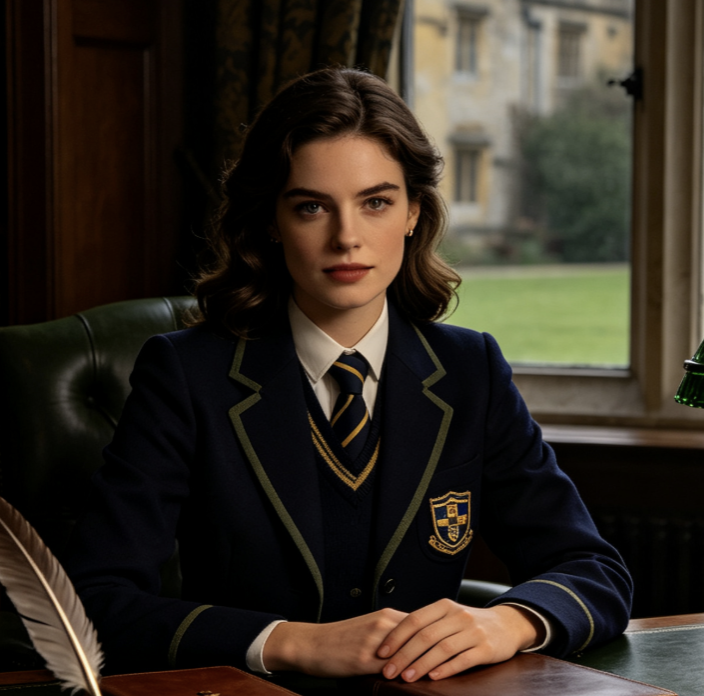
Use Seedance Image to Video when you like a portrait and only need movement. Add blinking, a gentle head turn, hair shifting, breathing, or a relaxed expression change. Seedance AI Image Animator can turn a static pose into a short moment without requiring a new scene. AI Photo to Video suits profile content, character showcases, and lifestyle visuals. AI Image to Video works best when movement fits the original pose. Seedance Image to Video AI lets you control motion type and intensity through the prompt.

Use Seedance Image to Video for Product and Object Motion

Use Seedance Image to Video for Product and Object Motion

Seedance Image to Video can animate a product photo without rebuilding its styling. Ask for a slow camera orbit, gentle push-in, fabric movement, shifting reflections, packaging rotation, or a hand entering the frame. AI Image to Video turns a polished still into a moving product moment. AI Photo to Video can add motion around the object while keeping attention on the subject. Image to Video with Seedance is useful when the source already has the exact lighting, composition, or product placement you want.

Use Seedance Image to Video for Everyday Story Moments

Use Seedance Image to Video for Everyday Story Moments

Seedance Image to Video can extend an everyday photo into a short story moment. Ask a child to run toward a kite, a dog to look at its owner, friends to start walking, curtains to move, or someone to reach for a cup. Seedance Photo to Video works well because the starting image already defines the people and setting. AI Photo to Video adds action without rebuilding the scene from text. Seedance Image to Video Online also lets you test quieter or more energetic motion from the same source.

Why Use Seedance Image to Video

Seedance Image to Video adds motion to an image you already chose. AI Image to Video keeps the source frame central, AI Photo to Video supports natural photographic movement, and Seedance Image to Video Online combines prompt direction with duration, resolution, audio, and visibility controls.

Direct Motion With Seedance Image to Video

Seedance Image to Video starts from your chosen frame, so the prompt can focus on movement rather than rebuilding the scene. Tell AI Image to Video who moves, what changes, and how quickly it happens. AI Image to Video is useful when composition, wardrobe, product placement, or background already looks right. Seedance Image to Video AI keeps the frame as a visual anchor while the prompt supplies motion direction. Image to Video with Seedance is practical when you want to animate an existing idea instead of starting from zero.

Control Subject and Camera Motion With Seedance Image to Video

Seedance Image to Video can direct subject and camera motion in one prompt. A person can walk, turn, smile, or react while the camera pans, tracks, pushes in, or stays still. Seedance AI Image Animator works best when these instructions support each other. AI Photo to Video can stay subtle for realistic portraits, while Seedance Image Animation can use stronger movement for more energetic scenes.

Guide an Ending With Seedance Image to Video

Seedance Image to Video includes Add End Frame when you want motion to finish at a specific visual state. This helps with pose transitions, object movement, camera reframing, or shots that need a clearer start-to-finish path. Seedance Image to Video Online can use that extra visual direction instead of relying only on text. AI Image to Video still benefits from a concise prompt explaining how the scene should move between the two frames.

Choose Audio in Seedance Image to Video

Seedance Image to Video includes a Generate Audio switch before generation. Turn it on when the scene benefits from sound, or leave it off when you plan to add music, narration, or effects later. Seedance Photo to Video can make everyday scenes feel more complete with sound, while AI Photo to Video without generated audio fits separate editing workflows. Seedance Image to Video AI keeps that choice in the same setup.

Refine Seedance Image to Video by Rewriting the Prompt

If the first result moves too much, too little, or in the wrong direction, keep the image and rewrite the prompt. Seedance Image to Video lets you change pacing, action, expression, environmental motion, or camera behavior without replacing the source. AI Image to Video phrases such as “subtle movement,” “slow natural turn,” or “locked camera” can narrow the result. Seedance AI Image Animator also benefits from instructions that avoid exaggerated gestures when realism matters.

Animate Different Images With Seedance Image to Video

Seedance Image to Video works beyond portraits. Use AI Image to Video for pets, food, interiors, travel photos, fashion, products, landscapes, illustrations, and stylized scenes. Image to Video with Seedance can move steam, clouds, traffic, fabric, reflections, or the camera itself. AI Photo to Video suits real photographs, while Seedance Image Animation can bring designed visuals into motion.

How Creators Use Seedance Image to Video

Creators use Seedance Image to Video for portraits, products, travel scenes, and social content where the source image is already strong. AI Image to Video and AI Photo to Video let them test movement without rebuilding the original visual direction.

Content Creator

I use Seedance Image to Video for portraits that already have the look I want. AI Image to Video lets me request a head turn, hair movement, and a slow camera push without changing the scene. AI Photo to Video is useful when I want a still post to become a short video idea.

Maya R.
Maya R.
Lifestyle Content Creator
Ecommerce Designer

Seedance Image to Video helps me turn product stills into motion concepts. With AI Photo to Video, I can test an orbit, shifting reflections, or a hand entering the frame. Image to Video with Seedance keeps the product setup, while AI Image to Video gives me different movement options from the same source.

Ethan C.
Ethan C.
Ecommerce Designer
Travel Editor

For travel photos, Seedance Photo to Video lets me keep the location and composition while adding clouds, water movement, people walking, or a gentle camera pan. Seedance Image to Video Online makes it easy to try a quieter version when the first result feels too dramatic.

Sofia L.
Sofia L.
Travel Editor
Social Producer

Seedance AI Image Animator is useful when I need subtle motion from a static campaign image. I keep the action simple and specify the camera separately. Seedance Image Animation feels more controlled when the prompt says what should stay still. Seedance Image to Video AI gives me a clear starting point for short social clips.

Noah P.
Noah P.
Social Media Producer

Seedance Image to Video Questions

Find quick answers about first frames, end frames, prompts, movement, audio, and common AI Image to Video workflows.

Seedance Image to Video turns an uploaded first-frame image into a moving clip based on your prompt. You can also add an optional end frame and choose whether to generate audio.

Turn one strong image into a moving scene with clear motion direction

Create Your Next Moment With Seedance Image to Video

Upload a first-frame image, describe what happens next, and use Seedance Image to Video to create motion from the scene you already have. Try Seedance Image to Video AI for prompt-guided action, Seedance Image to Video Online for a direct browser workflow, or Seedance AI Image Animator when subtle image animation is the goal. AI Image to Video and AI Photo to Video let you keep the original visual idea while exploring new movement.

Create Seedance Image Animation for people, products, pets, and scenes
Guide movement with a written prompt
Add an optional end frame and generated audio